Sunday, 3 April 2016

Creative Computing with the Arduino - experiences of a school club

Last year I volunteered on a Creative Computing project with Science Oxford. Myself and a fellow STEM ambassador ran a lunchtime club in a local secondary school with kit kindly donated by The Royal Academy of Engineering.


First Time Experiences

The first week was about getting to grips with the arduino, a breadboard and a simple LED circuit.


The Blink Circuit


The Blink Sketch

For the next few weeks we introduced basic programming concepts and a few simple electronic components. This was very successful, with most students being able to complete the weekly set task within the short lunch break.


Simple Tone Generator


For the final few weeks we encouraged the students to work on a project of their own, using the programming concepts and components they had learned about. We gave them a few ideas and lots of craft materials to work with. This was based on the success of a few workshops that had been run previously in the school holidays.


Animating a soft toy

In terms of production, the project weeks were less successful, with few students completing anything they set out to achieve. I think the main reasons for this were:
  • time required for setting up and tidying away eating into useful project time
  • C/C++ being a difficult language for beginners
  • wider mix of abilities and ages compared to the holiday clubs
  • our inexperience of teaching
  • too many different projects on the go at once, too much freedom
  • students preferring to spend time constructing the craft element, rather than doing any programming
This was a little disheartening. However, the school was delighted with our efforts and we were invited back to run a second club. I was pleased to see some of the original students returning for more in addition to several new faces.

However, we were now faced with the problem of some students being total beginners and others having already done the taught part of the club. In addition, we wanted to improve on the less successful 'project' part of the club.

Improving Our Efforts

We decided to stick with the taught part. But for the project weeks I devised a number of ready made projects complete with guidelines on connecting and programming (but not full solutions). Students who had been with us before were allowed to work on the projects from the first week or re-do any parts of the taught weeks.


trainer light sequencing

plush toy mood lamp

This worked well on the whole, and was much better than the free for all of the first club. The ready made projects were less of a step up from the taught component of the club and students had more of a sense of achievement at the end. In addition, managing students working on familiar projects was a lot easier, particularly as I was the only STEM ambassador available for much of this club. It also meant we didn't have to store several crates worth of craft materials.


In Conclusion


This was a very rewarding experience but I did feel that the weekly sessions were too short and that this would have been better run as a series of after school workshops (maybe 2 hours each session). Having to disconnect everything at the end of a session was frustrating. Just getting a student back to where they had been the week before could take up half the session. And they had to eat their lunch whilst at the club.

However, I was very impressed with the robustness of the Arduinos as they certainly were not treated with kid gloves! Not one of them failed. But the programming language (C/C++) proved too much for many students, especially as few had programmed before (not even in Scratch). 

What Next?

The BBC recently launched the micro:bit:


I am looking forward to when the micro:bit becomes available to the general public and hope to adapt some of the Arduino projects that came out of this club. From what I can see, it will be a much easier platform to get started with compared to the Arduino.


Wednesday, 14 January 2015

Keeping my Joggler going with the new Tesco API

Joggler - an organiser for busy families


Back in 2009, O2 launched the Joggler. The adverts caught my eye and the product looked interesting (this was before the days of the Ipad and other such tablets). But at close to £150 I was not prepared to buy one. Nor were many other people it would seem as a year later the price dropped drastically to £50 and O2 sold off the remaining stock. At this point, I bought one on ebay and it has lived in my kitchen ever since.
Joggler Squeezeplay - awesome
It is mostly used as a controller for my music system, but its other main purpose has been as a shopping basket for my Tesco account. You see, once the Joggler arrived, I couldn't resist tinkering with it and its arrival coincided nicely with Tesco's launch of its API for third party developers.

Although this was my first experience of a web API and terms like JSON and REST were all new to me, I found the reference guide provided by Tesco to be excellent and knocking up a useable app was a breeze. The hardest part was getting my elderly version of Flash/ActionScript to run on the Joggler, but I got there in the end.
My Joggler App

It was great. When I ran out of something in the kitchen I just tapped on my Tesco favourites and added the item to my basket ready for my next order. This simple app has served me well for the best part of 5 years. As has the Joggler, despite its regular dusting of flour, icing sugar, butter and everything else that has been thrown at it.

But, after the Christmas and New Year break I went to add something to the basket and .... nothing. No service. Now I do vaguely remember reading somewhere that the service was going to be discontinued but .... did nothing.

Fortunately, all is not lost as Tesco appear to have been busy re-branding and the old techfortesco has become
http://www.tescolabs.com/
complete with new API. Yay!

So, I signed up for a dev key, fired up Flash 5 and fixed up my app to access the new API. Fortunately most of the commands that I use (LOGIN, LISTPENDINGORDERS, LISTBASKET, LISTFAVOURITES, PRODUCTSEARCH) all worked seamlessly. CHANGEBASKET however doesn't appear to do anything; the response tells me that 'Basket change completed successfully' but when I request the basket via LISTBASKET, nothing appears to have been added. I have a very vague recollection of this problem happening the first time around. Perhaps it just hasn't been implemented yet. I will wait before investigating my app further, but not for too long as I'm about to run out of tea and I really can't let that happen.

Any sane person may be wondering why I stick with the Joggler. I have asked myself that many a time. In fact, last year, I was all set to replace it with my Asus EEpad with its lovely big screen. However, that died completely after less than two years of ownership and very little use - and it cost about 10 times the price of my trusty old Joggler! So cross. I am reluctant to splash out on another tablet just for the kitchen, especially as it will have to be sticky finger proof, something that thankfully the Joggler has already proved to be.


Thursday, 25 September 2014

Raspberry Pi Robotic Arm

Build Your Own Robot Arm
I came across this bargain a while ago in a local charity shop. Brand new, unopened and just £2.99! I have seen many examples of this kit being hooked up to the Raspberry Pi, so I thought it would be a good opportunity to get physical with my own RPi.

However, the majority of tutorials are based on the USB model. The one I have comes with a simple switch box control, not USB.

So, time to control the motors directly. All five of them.

I read a few tutorials before getting going and soon realised that connecting the motors willy nilly to the GPIO pins was probably not a good idea. There appear to be a number of ways of connecting the motors, but which was going to be best was a bit of a mystery. I plumped for getting started with a L298N H Bridge driver for no reason other than I had seen this working in another blog post and it seemed to be safe and foolproof.

I bought the L298N driver board from ebay but it didn't come with a datasheet. It looks a bit like this one, so I used this as a basis for connecting it up.

L298N motor driver

Although, it is capable of driving two motors, I started out by just trying out the motor controlling the robotic arm jaws.

I hooked up the +ve and -ve leads from the robotic arm battery pack (containing 4 D cells ~ 6V) to the +12V power and power GND terminals. The +5V power terminal was left unconnected - I believe this is an output. I then connected the yellow and black leads from the jaws motor to the output A terminals.

Next, the raspberry pi was connected. One GND pin was connected to the same GND as the robotic arm battery pack. Two GPIO pins (23 & 24) were connected to the two input pins on the driver board corresponding to 'output A'.

Some simple python code was then written to enable the pins, turn the motor clockwise, anti-clockwise and stop. This verified that all connections were working ok.

import RPi.GPIO as GPIO
import time

GPIO.setmode(GPIO.BCM)

# set pins as output
GPIO.setup(23,GPIO.OUT)
GPIO.setup(24,GPIO.OUT)

# spin motor one way for 0.2 seconds
GPIO.output(23,True)
GPIO.output(24,False)
time.sleep(0.2)

# stop the motors for 1 second
GPIO.output(23,False)
GPIO.output(24,False)
time.sleep(1)

# spin motor the other way for 0.2 seconds
GPIO.output(23,False)
GPIO.output(24,True)
time.sleep(0.2)

# stop the motors
GPIO.output(23,False)
GPIO.output(24,False)

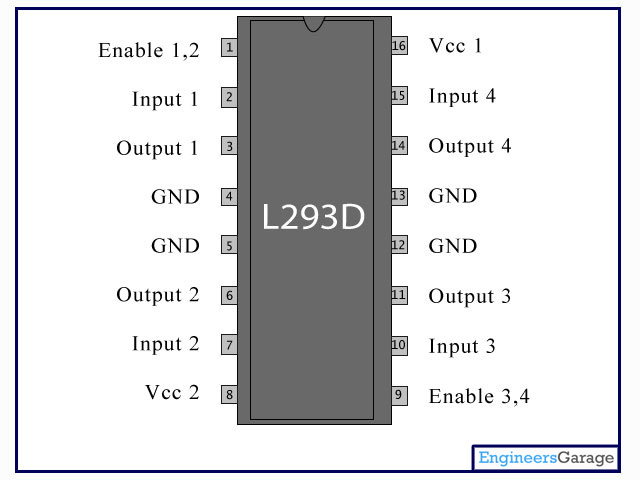
After this success, the other four motors were connected up. One to the other side of the existing L298N driver, two to a separate L298N driver and the final one to a L293D driver. The L293D driver came as just a chip and is not mounted on a board with other components. It looks like this:

L293D motor driver
It is also an H bridge and is capable of controlling 2 motors. I needed a breadboard to mount it and provide easy access to its pins. It was simple to connect up, guided by datasheets readily available online.

I then wrote a python script which allowed the robotic arm to be controlled via keyboard presses (via pygame). The code is available on github robotarm.py

And here is the robotic arm in action:


Great, so I have replaced the perfectly adequate control box that came with the arm with a wiring monstrosity! But the project has lead to a better understanding of interfacing and the research required has pointed me towards many new resources to learn from.

Questions which I now wish to pursue are:

  1. What alternative interfaces could be used to connected a DC motor?
  2. What is an H Bridge?
  3. What are the main differences between the L298N and L293D?
  4. What other motor drivers are popular among robotic enthusiasts?
  5. What other motors are possible?


Sunday, 17 August 2014

Lego WeDo and the Raspberry Pi

After some initial fun with Lego WeDo and Scratch, our enthusiasm waned, mainly due to the necessity to tether any model to our computer. Somehow it didn't seem quite so exciting as Lego Mindstorms where the microcontroller is part of your model giving it the freedom to roam.
Inspired by this Lego / Raspberry Pi model built by another geeky parent I decided to see if we could do something similar. As we already had a WeDo hub, it seemed that would be simpler than getting involved with all that fiddly looking GPIO stuff.

First, the 'car'.

Lego WeDo + Raspberry Pi

Pretty neat eh? The WeDo hub is sitting under the RPi. The black box at the back is not functional; it houses a ridiculously long USB cable which is the only one I have with a slim enough micro USB connector to fit in the PiBow case (my only gripe with this case - others have the same problem). The ribbon cable is not in use.

It was inspired by:

Lego 9719 Robotics Invention System

Lego's early robotic system which housed the processor (RCX) in a box of a similar size to my cased Raspberry Pi. There are lots of archived building instructions for this forerunner to the latest Mindstorms products and we got quite excited about the prospect of adapting more models for the Raspberry Pi.

The Pi itself is housed in a PiBow which is a great case and has the added advantage of a few holes in the bottom which fit perfectly onto Lego bricks. The power source is a Powergen battery pack (as used by 'Geek Dad').

Feeling pleased with myself I knocked together the software. At the time, Scratch only officially supported a single motor, so I decided it was time for my son and me to move onto Python. This was already installed on our Raspberry Pi, but we needed some extra stuff to get it to work with the WeDo hub.
After a few teething problems I managed to install this on our Raspberry Pi. But then we ran into other problems.

First, there are only two USB ports on our RPi. Ideally we needed ports for all of the following:
  • wifi adapter - to login remotely
  • bluetooth adapter - we planned to use the Wii Remote as a controller
  • Lego WeDo hub
I plugged in an unpowered USB hub hoping that would solve the problem. It didn't. Some things didn't work at all, and others were intermittent. Plus, the hub was an added weight for the 'car' to be carrying around.

So, we ditched the Wii Remote idea. 

After booting up the RPi I connected to it remotely over the wifi using Putty from my laptop (I had already noted its IP address from an earlier session). Then I ran the python script remotely. Controlling the car was with a simple character entry interface via Putty. And here we see it in action:


Successfully controlled, but rather slow. The hub can only deliver 5V as opposed to the 9V required by the motors. In addition, even under quite small loads (a ruck in the carpet for instance) the motors sometimes would just stop. The only way to recover was to unplug the Lego WeDo hub, put it back in and restart everything. Not the experience we were hoping for.

I have since tested the Lego WeDo hub on different computers both with Python and Scratch. Whenever two motors are connected it is very easy to stop them functioning by putting them under quite small loads. This has never happened with just one motor attached. I've not seen any reports of this elsewhere, but then not many people are using two motors with it. Perhaps I just have a faulty hub?

Sadly, it is farewell to the simplicity of the Lego WeDo hub for us. Next step is to get to grips with the GPIO pins on the RPi and to get some real power to our motors! 


Friday, 23 November 2012

Fun with Lego WeDo and Scratch

Flushed with the success of reading external inputs from the PicoBoard into our Scratch projects I thought that we would take a look at outputs via Lego WeDo. This is Lego's Junior Robotics system designed for use in schools, but available for home use too. It mainly consists of a motor, a motion/distance sensor, a tilt sensor and a hub to connect to a computer.

Trouble is, at around £80 it's expensive and that does not include Lego's software (but you can use Scratch). The kit does come with instructions for 12 models which make full use of the included motor and sensors, but having taken a look at the plans I thought that my 11 year old son would probably prefer to experiment with his own creations.


Instructions for all of these models can be found at Ro-botica (probably also on the Lego site, but I couldn't see them) . The Ro-botica site is in Spanish, but all instructions are in English.

Besides, we have heaps of Lego at home already, including some older style 9V motors. So, being a cheapskate I opted to just purchase the USB hub for now as really we only want to experiment with motors. Still expensive at around £30 mind you.
The Lego WeDo USB Hub
It arrived and within minutes was connected up to our computer running Scratch. Selecting 'Edit', 'Show Motor Blocks' revealed the following extra blocks in the Motion section.


In order to use these blocks, the WeDo Hub expects a Lego Power Functions motor to be plugged in. But we don't own any. So, what next?

The Power Functions (PF) system is Lego's latest electrical system, replacing the 9V system which was introduced in the 1980s. PF is a four wire system and the older 9V system just used two wires; the connectors are not compatible.

Fortunately, one of the following PF extension cables can act as an adapter between the two systems. This allows older 9V system components to be connected into a PF system.

8886 extension cable 8871 extension cable
The dark grey connector at one end is a standard PF connector. The light grey connector is PF on the top and old 9V on the bottom. So, to connect an old 9V motor to the WeDo hub:

Connect the dark grey connector to the USB hub. And then connect the light grey connector either:

  • directly to the motor (if it has a connector on top like this one)

  • indirectly to the motor via an old 9V cable

  • or indirectly to the motor via an electric plate


Once I had connected the old motor I then played around with the Scratch controls, turning the motor on and off, changing the direction and changing the power. All worked as expected. However, bear in mind that the motor requires 9V to run at full power and the USB hub can only deliver a maximum of 5V.

I then tried a couple of other old 9V Lego components I had:

Electric Light & Sound Bricks: Town Siren + Twin Top Lights
On their own, these did not work when the motor control was activated from Scratch, but with the motor also connected I got sirens, lights and motor spin. And once current was flowing the motor could be taken off and the lights and sirens would remain on.

Now I don't pretend to know exactly what is going on here, but I suspect that the WeDo hub does not allow the current to flow unless there is something to draw enough current attached - maybe? Once current is flowing, you can disconnect the motor and still do things like change direction and power which result in dimming the lights and changing the siren tone. When you 'turn the motor off' from scratch the siren / lights go off and won't come on again without the motor connected.

So next, I thought that I would try putting a resistor in the circuit. I did this by cutting a 9V lead so that one end had the standard connector and the other was just two bare wires:

Adapted cable 5306b
A couple of crocodile clips, a resistor from my kids' snap circuits kit and bingo - lights and siren without the motor connected:


And, using the customised 9V lead, it can be connected to other non-Lego components. I have had success with MES light bulbs and other motors.

Not sure what we are going to do with all this knowledge, but my son has had some fun already. He created this Pirate Ship fairground ride (adapted from the Lego Wedo Ferris wheel instructions) and then I helped him add the lights. Unfortunately it is only possible to control 1 motor circuit from Scratch; I would have liked to have been able to use a separate circuit for the lights.


control for the pirate ship
Conclusions

I am glad that we have had the opportunity to play around with Lego WeDo and I think coupled with the PicoBoard my son can have plenty of fun programming and building. I may now buy a Lego Motion Sensor for him which will bring our total spend up to about £50, so the original £80 set starts to look like a good buy if you also need a motor.

I had hoped that we could use some plans such as from our Lego Inventor - Motion Movers set, but the 5V restriction does not give enough power to drive the models that I have tried so far.

It is a pity that only one motor circuit can be controlled from Scratch. However, it does look like there is a workaround by building a customised Scratch image. Instructions available here on the Scratch Forum, but I haven't tried them yet.

Be careful with any customisations, as I cannot guarantee that any of the above procedures will not damage your USB hub and/or computer.

Tuesday, 13 November 2012

Computing at School


I am delighted and impressed to hear that my son's primary school is introducing Scratch into the ICT curriculum for Year 6.
"In our first ever Computer Science based unit of work, the children will be learning the fundamentals of programming using an online programming language – Scratch. They will invent a new platform game with their skills and test each other’s games. This is a fantastic new area for the school and one which will really challenge your children’s problem solving skills. If they would like to continue to explore this area of work at home, you can download the Scratch program from the following website:
http://info.scratch.mit.edu/Scratch_1.4_Download
It is free to use and great fun for all the family!"
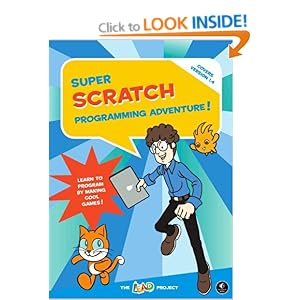
Coincidentally I had just introduced Scratch to him myself and he loves it. He started by just playing around with the program and then I gave him the following book, which I thoroughly recommend.


With this he has been able to follow instructions for ready made programs. He has then adapted them and introduced concepts into his own games. This is how I got started back in the 1980s on a Commodore Vic20 - typing in pages of code from magazines.

Scratch can also be used to control and interact with external devices via a Lego Wedo USB hub and/or a PicoBoard. And to make the homemade games feel a little more authentic, standard USB games controllers can be used via the fantastic Joy2Key program.

I have several projects in mind for my son to assist with and will report back with our results. In the meantime, I am about to fire off a letter to the school offering my help with this exciting development.

Introducing programming such as this into primary schools requires a teacher or two that are very 'e-confident' and I feel very lucky that my son's school has such teachers. If you would like to see such innovation in your own child's school, then check out Code Club which is busy setting up "A nationwide network of volunteer-led after school coding clubs for children aged 9-11".

Sunday, 11 November 2012

Tangram Animation

Whilst tidying up the hard drive on my computer I came across a number of half baked animation projects from some sessions I ran at my kids' junior school. One of the projects was this simple tangram animation which was filmed on a Digital Blue camera by some 9 year olds.

As we only had a couple of cameras at the time, this project worked well in a round robin fashion with each child being able to choose the tangram character they wished to animate. I think we did create a longer film, but I don't appear to have that at home.


I've decided to give the project a makeover, this time by lighting from below to give the effect of a shadow play. I've experimented with this style before using a Digital Blue camera, but I wanted to see if there were any improvements that could be made now that I have upgraded to a Microsoft Lifecam camera and ZU3D software. Here is the result:


The technique involves mounting the camera above a lightbox. The lightbox I use is small (size A4) but perfectly adequate and ideal for use with children. For more details please see my website, here.

My animation station!

In the past I have cut out the foreground scenery from black card and stuck it directly onto the lightbox. However, the ZU3D software allows images to be imported and placed on a separate track to your stop motion frames. This has made things a whole lot easier. It also means that more elaborate scenery can be designed. I created this background image in GIMP (the white parts are actually transparent) and saved it as a PNG file sized 640 x 480 pixels to match the default dimensions for my camera in ZU3D.

Scenery - click to enlarge, save and then import directly into your project.

 and then imported it into ZU3D:


I then added another video track below the scenery and started to capture frames. The green hue was provided by green cellophane placed on the lightbox (we didn't use this in the end). I used to be able to get a similar effect using the Digiblue's software, but I can't seem to find such a feature in ZU3D. Oh well, you win some, you lose some!


I have been so pleased with the way that this has turned out and hope to come up with some more project ideas for the future.

The small tangram characters were all printed onto black card and cut out. This can be tricky to see, especially for a child; an easier method is to print onto white paper and then transfer to the card by rubbing white crayon or pencil onto the back.

Here are all of the characters used in the film - right click to save. Searching on the internet will reveal lots more that you can copy.


And here is the tangram square used to create the transformation animations:

Right click, save and print onto black card.